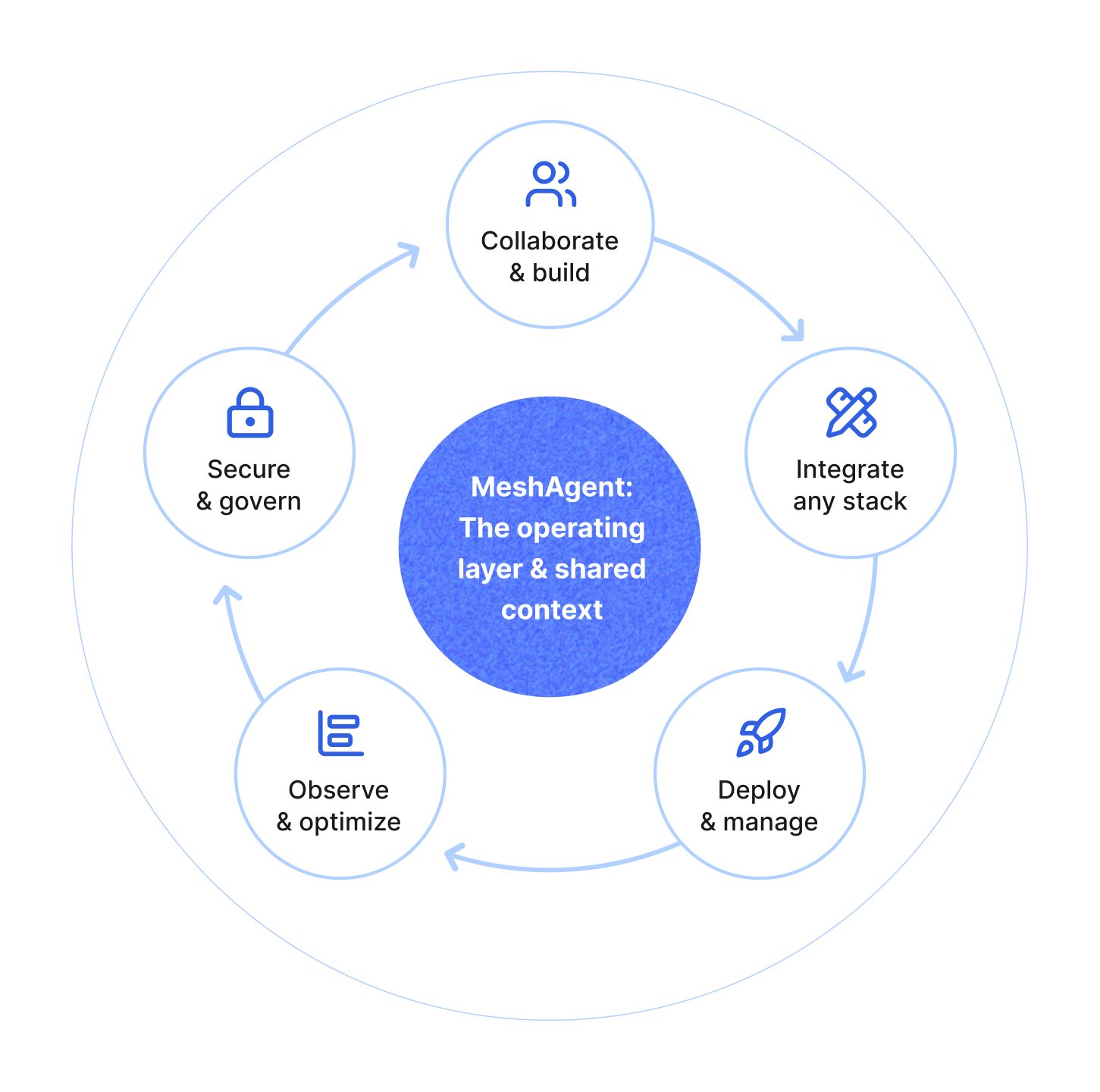
MeshAgent gives you a way to run and deploy agents that can handle real work across multiple channels, over long periods, with human steering and approvals when needed. We provide a way to define agents, a harness to run and manage the agent’s work, and a Room-backed environment where agents can work over time.
In this model, the agent is a participant that does work. It can have rules, tools, channels, and other configurable behavior. The harness is the orchestration layer around the agent. It routes work into the agent, manages context by thread, coordinates tool calls, handles user approvals, steering, and interruptions, and keeps long running work organized and observable. The Room is the environment where agent work happens. Rooms provide a secure, shared workspace that serves as the runtime and collaboration boundary for human-agent teams with built in capabilities like file storage, databases, and containers that both humans and agents can use.
Running agents in Rooms solves multiple problems at once. The same agent can be used by multiple people on a team. Multiple agents can exist in the same workspace and interact with one another when needed. Rooms give humans and agents access to the same shared infrastructure such as storage, queues, containers, and databases in one place. Rooms also provide clear security boundaries where humans and agents only have access to the resources and actions their permissions allow. This post focuses on how meshagent process works, what the harness does, and how it supports long running, multi-channel, steerable agent work. For a closer look at channel-specific behavior, read Build Multi-Channel Agents in MeshAgent.
meshagent process doesmeshagent process is the main CLI entry point for launching a Room-connected agent. It defines the agent identity, capabilities, and how it receives work.
A typical command looks like this:
meshagent process join \
  --room gettingstarted \
  --agent-name my-first-agent \
  --channel chat \
  --channel mail:my-first-agent@mail.meshagent.com \
  --channel queue:my-first-agent \
  --channel toolkit:my-first-agent \
  --threading-mode default-new \
  --thread-dir ".threads/my-first-agent" \
  --model gpt-5.4 \
  --require-web-search \
  --require-shell \
  --shell-image=meshagent/shell-terminal:default \
  --require-storage \
  --rule "You are a helpful agent. Use tools when needed, save artifacts to storage, and ask for clarification before making big changes."
This command connects the agent into a specific Room, configures the agent’s rules and model, attaches channels so the agent can receive work from different entrypoints, sets threading behavior, and enables capabilities like web search, shell access, and storage use.
The same agent configuration can be tested locally with the CLI, switched between model providers, deployed as a managed service, and shared with your team. Get started today with the built-in assistant in Powerboards. The agent can use either OpenAI or Anthropic models, has steerable rules, and supports tools for memory, web-search, storage, shell, and MCP. You can also assign the agent an email and turn on a heartbeat style queue for the agent to wake up and continue working throughout the day.
The MeshAgent harness enables long-running, multi-channel agent work. One agent can receive work from multiple entry points and work with a variety of built-in or custom tools while keeping each conversation or job organized as its own thread.
A thread is the persisted history of a line of work for an agent. A turn is one unit of work inside that thread. Turns can stream output, call tools, pause, resume, or be redirected while remaining part of the same thread history.
Work can come from different channels including chat, email, queues, or toolkit calls. Each of those entry points is converted into a uniform process message. From there, an AgentSupervisor routes that message based on thread_id.
If a thread doesn’t already have an active process, the supervisor creates a new LLMAgentProcess. The LLMAgentProcess handles the full turn for the thread including any steering messages, interruptions, or tool approval requests. As the turn runs, the AgentProcessThreadAdapter writes the outputs, status, tool activity, and other lifecycle events to the persisted thread.
This is what keeps the system coherent even when many things are happening at once. One agent can serve many channels and work across many threads without mixing them together because each thread maintains its own history, state, and line of work.
While an agent turn is in progress, MeshAgent can stream updates, accept steer or interrupt messages, and pause for approvals. A steer message adds new direction to the ongoing work. An interrupt message stops the current path so the turn can be cancelled or redirected. When the agent wants to run a tool that requires approval, the turn can pause, emit an approval request, wait for your decision, then continue the turn with the decision in context.
This is especially valuable for longer work and complex tasks because you don't have to wait for the agent to finish before course correcting. For example, while an agent is coding or conducting long-running research, you may want to refine the goal, add a missing constraint, redirect the task, or stop a bad path before the agent wastes time or tokens.
MeshAgent manages context in several ways. It persists work by thread and reconstructs session context from the persisted thread when a thread becomes active again. It also appends new steer messages into the active session as the agent works.
MeshAgent’s OpenAI and Anthropic adapters support automatic context compaction. This enables long-running conversations to continue with important context even when the thread approaches the model’s context window limit.
For longer lived context, agents can use the built-in memory toolkit (--use-memory) to store, search, retrieve, and delete memories. This gives the agent another way to keep important information available over time across threads and channels.
Because agents are multi-channel, the same agent can be used conversationally in chat or through email and it can also be used to perform work in the background, either as a tool for another agent or through queue-driven jobs like scheduled tasks.
For coding tasks, agents need an environment where they can inspect files, write code, and execute commands safely. MeshAgent supports that in two main ways. With --require-shell, the agent can run shell commands in the environment where the agent itself is running. For a local CLI session, that means your local machine. For a deployed agent service, that means the service’s container. When the agent needs finer-grained control, MeshAgent also supports --require-advanced-shell. This allows the agent to manage its own containers, run commands inside them, choose the container image, and customize the image.
Because agents run in a Room, they can also be equipped with toolkits that leverage the Room’s infrastructure. This means agents can easily read and write files, create or update databases, or trigger other available tools.
MeshAgent automatically instruments agents, tools, and Room/Session activity. You get logs, traces, and metrics for what happened during a session out of the box and can inspect the activity directly in MeshAgent Studio through the Developer Console and Session views.
This makes it much easier to inspect what the agent did, understand how tools were used, and where it may have gotten stuck.
Rooms allow multiple team members to interact with the same agent in a shared workspace. This is particularly helpful when different team members need to contribute to the same task. For example, one teammate can give high level guidance on what the agent should build, and another teammate can later steer the agent with specific instructions or pick up the same thread to continue the work.
Because the Room persists beyond a single local session, both the agent and its full history remain available to the entire team. Humans and agents can see the same shared context which makes it easier for both parties to collaborate on work over time.
Join our Discord Server to stay up to date with MeshAgent releases, see full release notes, ask questions, and share feedback with our team.
Check out the MeshAgent documentation to start building today!

MeshAgent Studio, SDK, and Server give you everything to build, test, and deploy agentic applications, from development to production.